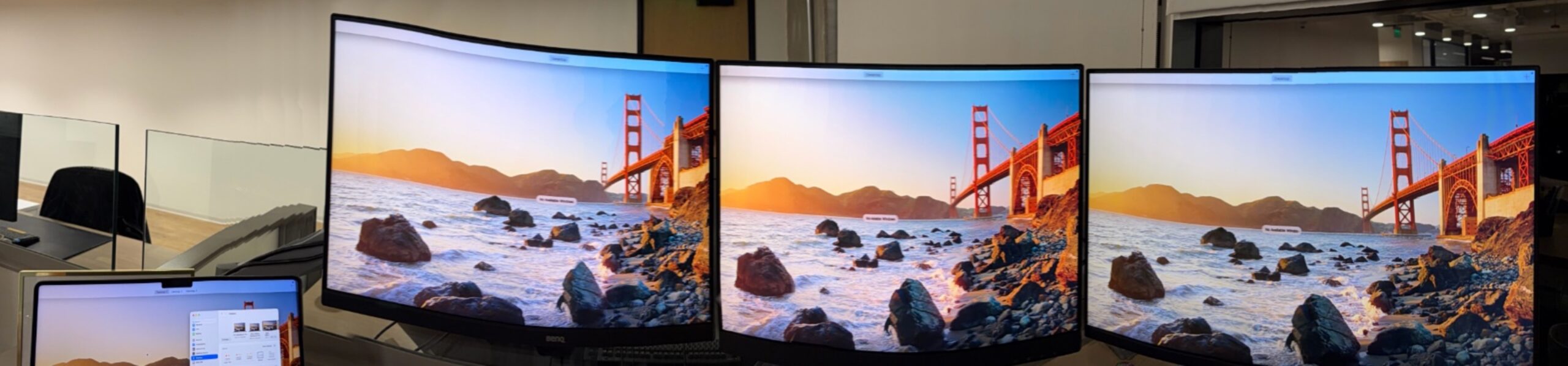
Apple says a MacBook Pro with an M1 Pro drives two external displays. We are running three: two into a dock, and the third straight into a Thunderbolt port on the Mac. The same arrangement works on an M5 Pro. Nothing on either box tells you it is possible.
That is the whole answer, and you can stop reading here if that is what you came for. The rest is why it works, the software you have to install first, and the one case where you did not need any of it.
The arrangement
| Display | Where it plugs in |
|---|---|
| External 1 | Dock |
| External 2 | Dock |
| External 3 | Thunderbolt port on the Mac itself |
| The laptop’s own screen | Stays on |
Four screens in total: the built-in display plus three externals, all live at once. We have run this on two machines — a MacBook Pro with an M1 Pro and one with an M5 Pro — through the same UGREEN CM615 dock, a nine-in-one with two HDMI and two DisplayPort outputs, of which two can be used at a time.
The dock is not defective and you have not configured it wrong. Two is what it does. Its own specification says dual monitor, and the four video outputs on the back are alternatives, not additions — you pick two of the four.
You have to install software first
This dock uses DisplayLink, and it does nothing at all until you install DisplayLink Manager. Plug everything in without it and the external screens stay black — which looks exactly like a broken dock.
We confirmed this the direct way: quit DisplayLink Manager and the setup stops working. It is not an optional utility or a settings panel. It is the thing driving the displays.
It is a free download from DisplayLink, it has to keep running in the background, and it needs screen-recording permission on macOS — which is alarming the first time you read the prompt, and is simply how the software gets the image it then sends to your monitors.
Why the third one has to bypass the dock
There are two completely different ways a display can be driven, and the difference is invisible until you need a third screen.
| How it works | Limit | |
|---|---|---|
| Straight into the Mac | The Mac’s own display hardware | Whatever your chip supports |
| Through a DisplayLink dock | Software compresses the image and sends it over USB | Whatever the dock supports |
Because those are separate paths, they add up. The dock’s displays do not spend the Mac’s own allowance, so the one plugged directly into a Thunderbolt port is a third screen rather than a replacement for one of the first two.
This is how an M1 Pro ends up driving three. Apple’s figure of two is the number of displays the chip itself can run, and here it is running exactly one of them. The other two are the dock’s problem. The limit was never on how many screens could be attached to the laptop — it was on how many the laptop had to drive.
This is the part worth knowing before you buy anything. If you need three screens you do not need a dock that claims three, and you do not need a newer Mac. You need a dual-monitor dock and one spare Thunderbolt port.
| Chip | Apple’s figure | With a dual dock plus one direct |
|---|---|---|
| M1 Pro | 2 external | 3 external — past the limit |
| M5 Pro | 3 external | 3 external — it could already do this |
Both machines end up with the same three screens. Only one of them needed the dock to get there.
The case where you did not need any of this
The M5 Pro is the exception. Apple says it supports three external displays on its own, so in principle that machine never needed DisplayLink at all — three cables into three Thunderbolt ports should have done it.
But the moment a display goes into a DisplayLink dock it is on the software path, whether the Mac could have handled it or not. The dock decides, not the laptop. On a Mac that already drives the number of screens you want, a DisplayLink dock means running compression you did not need — and on a Mac that does not, it is the only thing that gets you there.
That is not an argument against this dock. A dock is not only about displays — this one carries Ethernet, USB ports and 100W of power to the laptop over the same single cable, and that convenience is the actual reason to own one. But if the only thing you want is more screens, and your Mac already supports the number you want, the cheaper answer is cables.
What this costs you in practice
In daily use on this setup, the DisplayLink screens are unremarkable. Text is legible, windows move normally, and across a working day the difference between the software-driven screens and the directly connected one is not something you find yourself noticing.
That is an impression from using it, not a measurement, and we are labelling it as one. What we can say plainly is that it has not been a problem for the kind of work these screens do — documents, code, browsers, meetings.
Where we would be careful is anything where compression and latency are the point. Colour-critical work, fast-moving video, games. If that is what the third screen is for, put that one on the direct connection.
If you are setting this up
- Install DisplayLink Manager before you blame the hardware. Black screens on a new dock usually mean missing software, not a faulty unit.
- Count the dock’s outputs, not its ports. Four video connectors can still mean two displays. The number that matters is in the specification, not on the back panel.
- Keep one Thunderbolt port free. That port is your third display, and it is also the one that will not depend on software running.
- Put the screen you care about most on the direct connection. It costs nothing to choose, and it is the one path that is not compressing anything.
What we have not tested
- One dock, two Macs. A UGREEN CM615 with an M1 Pro and an M5 Pro MacBook Pro. Other DisplayLink docks have different display ceilings, and other chips support different numbers natively.
- We did not measure anything here. No latency figures, no CPU cost, no image comparison. This is a working setup described by someone using it, and where we say something feels fine, that is exactly what it is worth.
- We have not tried four externals. Two on the dock plus two direct might work on the M5 Pro. We have three monitors, so we stopped at three.
If this is the kind of gap you keep running into, we wrote up three things Apple’s boxes were missing, none of them on the box.
Published 24 September 2026. Setup described: a MacBook Pro with its built-in display, two external monitors on a UGREEN CM615 DisplayLink dock, and a third external connected directly to a Thunderbolt port on the Mac. Confirmed working on both an M1 Pro and an M5 Pro machine, with DisplayLink Manager installed and running.