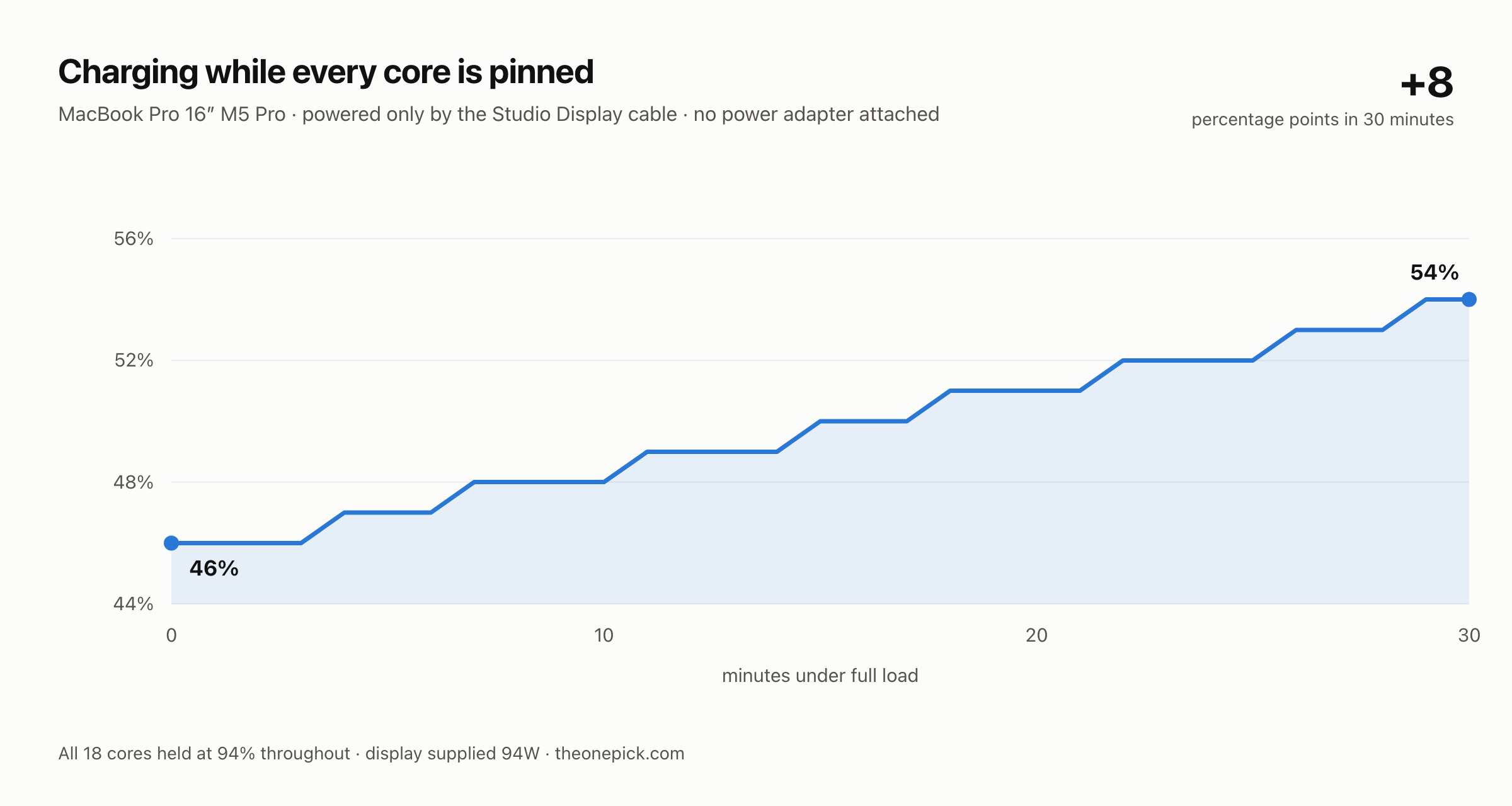
We unplugged the 140W brick from a 16-inch MacBook Pro, left it connected to a Studio Display by that display’s cable alone, and then pinned all eighteen cores at full load for thirty minutes. The battery went up, not down — from 46% to 54%.
If you have bought a Studio Display, or are about to, the question underneath this is whether you still need to carry the charger. On our machine, for this kind of work, the answer is no.
Why this is even a question
Apple publishes a list of what enables fast charging on a MacBook Pro. The wording is “you can quickly charge your battery up to 50 percent in around 30 minutes.” The 14-inch model qualifies with either a 140W or a 96W adapter. The 16-inch list contains only the 140W adapter.
A Studio Display supplies 96W. So the display is below the bar Apple sets for fast-charging a 16-inch — and the display is not on any of those lists in the first place, because those lists name specific power adapters and cables, not monitors.
What Apple never says is what happens instead. “Not fast charging” and “not enough to run the machine” are entirely different purchases, and the gap between them is where this test sits.
First finding: it is 94W, not 96W
Before measuring anything we asked the Mac what it thought it was plugged into.
$ pmset -g adapter
 Wattage = 94W
 Current = 4700mA
 Voltage = 20000mV
20V at 4.7A is 94W. Apple’s specification page says 96W host charging. The negotiated figure is two watts lower than the advertised one.
Two watts changes nothing you will ever notice. We are reporting it because it is the difference between copying a number off a specification sheet and reading it off the machine, and because every figure below is calculated from 94W rather than from 96W.
The test
One cable: the Studio Display’s, into a 16-inch MacBook Pro with an M5 Pro. No MagSafe, no second USB-C, lid open. We then loaded every core and left it there for thirty minutes, sampling the battery once a minute.
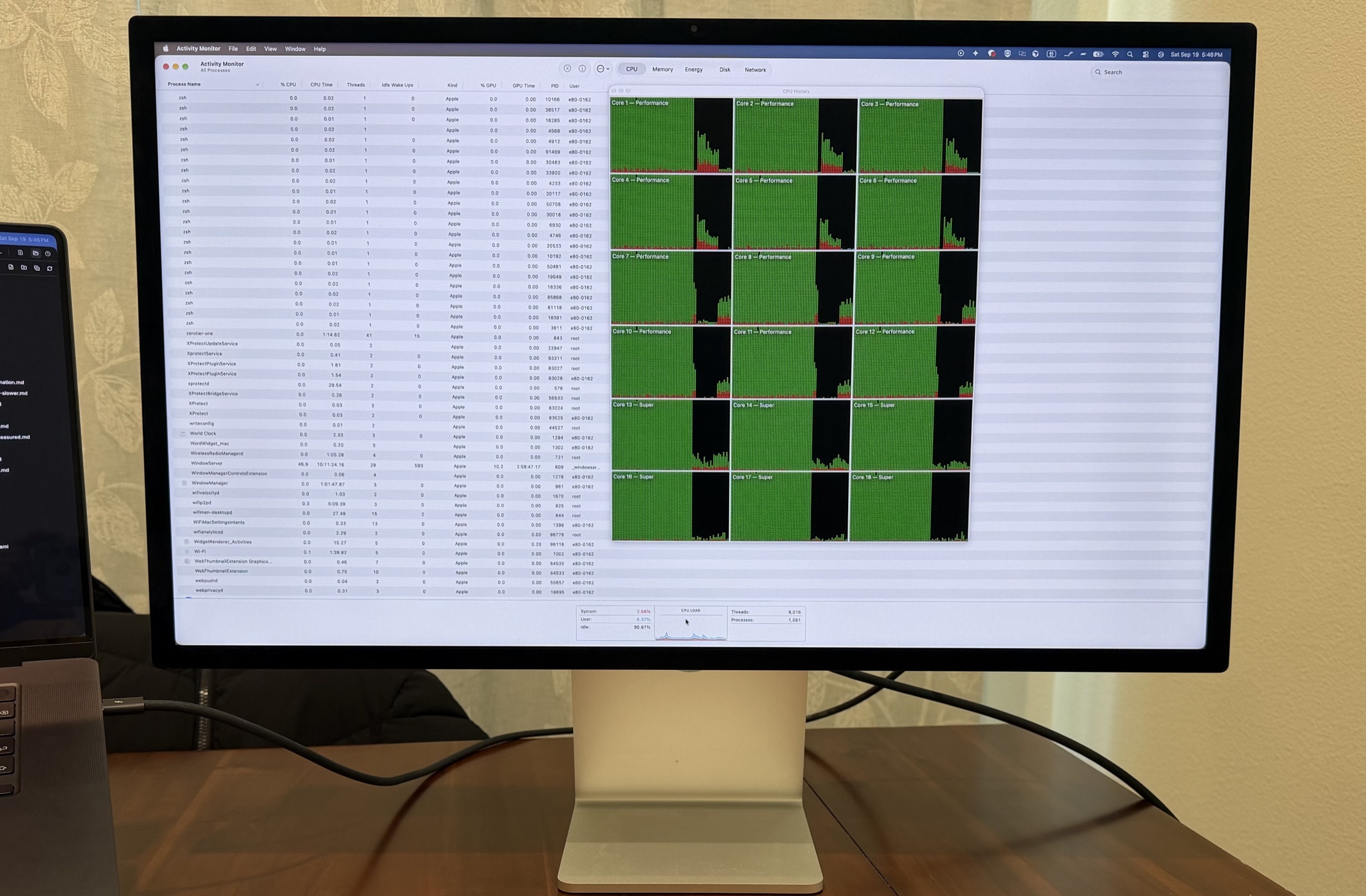
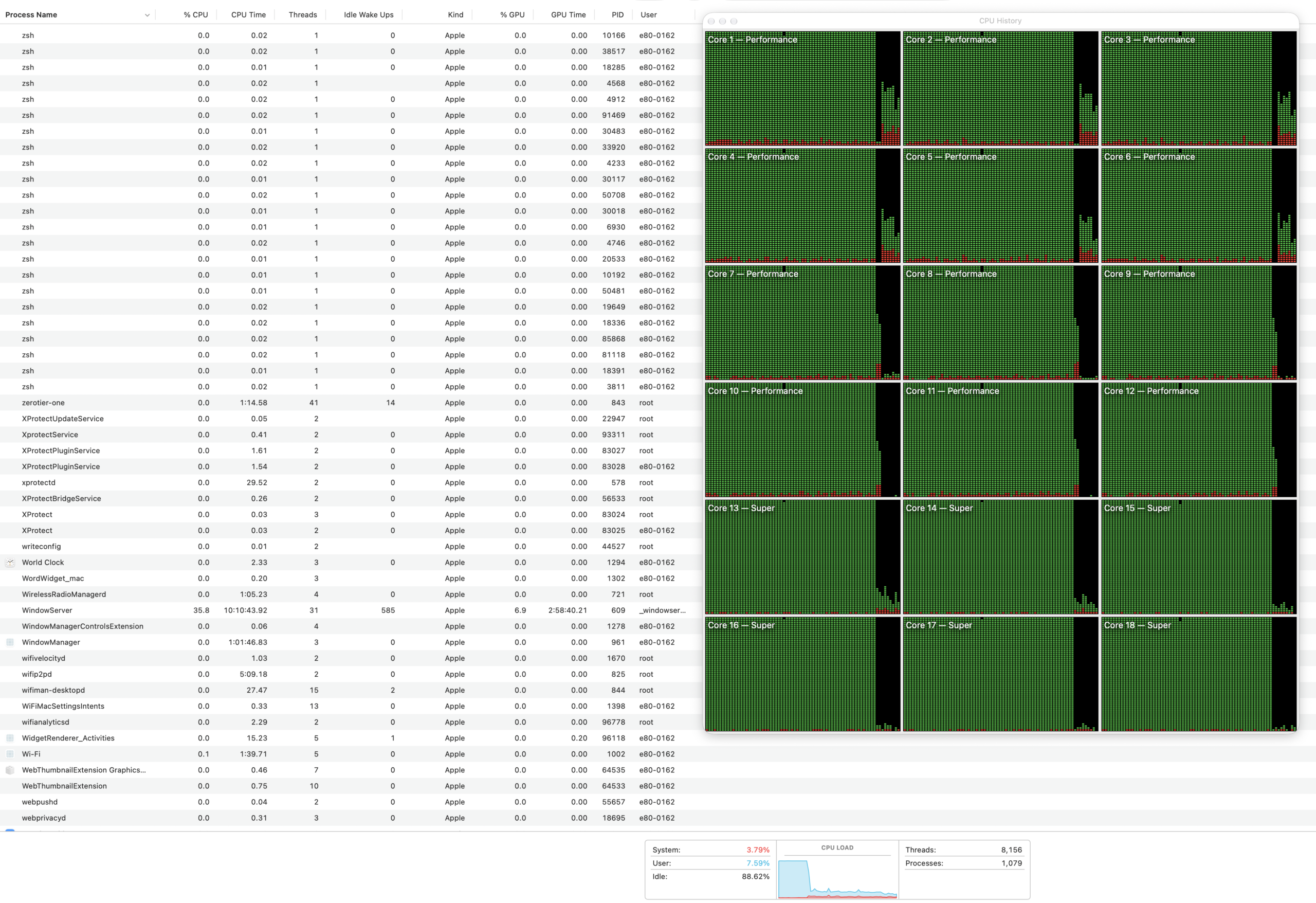
“Loaded every core” is a claim we have learned to check rather than assert, so here is the machine during the run. Eighteen cores, twelve Performance and six Super, all of them pinned:
| Minute | Battery | Into the battery | Adapter |
|---|---|---|---|
| 0 | 46% | +6.1W | 94W |
| 10 | 48% | +17.5W | 94W |
| 20 | 51% | +16.9W | 94W |
| 30 | 54% | +17.3W | 94W |
Eight percentage points in half an hour, at full load, from a cable that is also driving a 5K display. The battery never dropped between two consecutive readings.
The number that explains it
Average power into the battery across the run was 16.6W, and the display was supplying 94W. Subtract one from the other:
The machine itself was drawing about 77W with all eighteen cores saturated.
That is the whole answer. A 16-inch MacBook Pro running flat out needs roughly 77W, the Studio Display hands it 94W, and the 17W left over goes into the battery. The 140W adapter exists to charge the machine quickly, not to keep it alive.
We should be careful about how far that 77W travels. It is one machine, one kind of work, one configuration. A run that hammers the GPU instead of the CPU would draw more, and we have not measured that.
It did not throttle either
While the machine was in this state we checked whether running it on 94W costs performance. Eight consecutive rounds of the same all-core work, roughly a minute each:
| Round | Throughput | CPU speed limit |
|---|---|---|
| 1 | 54.0M | 100% |
| 4 | 54.5M | 100% |
| 8 | 54.9M | 100% |
Throughput finished 1.6% above where it started, and the spread between the fastest and slowest round was 2.5% — so the change is inside our own noise. macOS reported a CPU speed limit of 100% in every round, meaning the system never declared itself thermally constrained.
The slowest round was the first one. The machine warmed up and got marginally quicker; it did not wilt. We have written about sustained load on these machines before, with a workload we now know was lighter than we described; this run used one that leaves nothing idle.
Common questions
Can a Studio Display charge a MacBook Pro?
Yes, over the single Thunderbolt cable that already carries the picture. On our 16-inch MacBook Pro the battery rose from 46% to 54% during thirty minutes of full load on all eighteen cores, with no separate charger attached.
How many watts does the Studio Display actually deliver?
We measured 94W, steady across the whole test. Apple’s specification says 96W. The gap is small and consistent, and it did not change under load.
Do I still need to carry the 140W charger?
Not for working at the desk. The one thing 94W cannot do is fast charging, which the 16-inch machine needs a higher-wattage supply to reach. If you want to go from empty to half in half an hour, that still takes the brick.
Will the MacBook throttle when it is powered this way?
It did not on ours. Every round reported a CPU speed limit of 100% and throughput held from the first round to the last. Worth knowing, though, that charging was being held back to feed the processor — the battery took 6W in the first minute and about 17W thereafter, which is well under what the same machine accepts from a 140W adapter.
Does it charge an iPad the same way?
It does, and we tested what else works when you connect one: an iPad Pro on a Studio Display.
Where our numbers are weak
- One machine, one display. A 16-inch M5 Pro and an original Studio Display — the Thunderbolt link negotiated at 40Gb/s, which tells us this is not the newer Thunderbolt 5 revision. We cannot tell you the newer one behaves identically, though its published host-charging figure is the same.
- Lid open, nothing else attached. We did not test clamshell mode, and we did not hang anything off the display’s own USB ports. Both could take power away from the Mac, and both are how people actually use these desks.
- CPU load, not GPU. Our 77W figure comes from saturating the processor. Sustained graphics work draws more, and we have not measured where that lands against 94W.
- We started at 46%. Charging slows as a battery fills, and the machine had an 80% charge limit enabled. Our run ended well short of that, but the rate we measured is the rate at a half-empty battery, not an average.
- Thirty minutes is not a working day. It is long enough for the fans and the chassis to reach a steady state, which is what we wanted. It is not evidence about eight hours.
How to check your own setup
Unplug everything except the display cable, then ask the Mac what it is receiving:
pmset -g adapter
pmset -g batt
Note the wattage and the battery percentage, do your heaviest normal work for half an hour, then check the percentage again. If it is higher, you do not need the brick at your desk. If it is lower, you have learned that before a deadline rather than during one.
The same M5 Pro MacBook Pro, set against the M4 Pro and M1 Pro generations on identical tests, is in M1 Pro vs M4 Pro vs M5 Pro, tested.
Measured 19 September 2026. MacBook Pro 16-inch (Mac17,8, M5 Pro, 48GB, macOS 27.0, battery at 100% maximum capacity after 7 cycles), connected by Thunderbolt to a Studio Display and to nothing else, lid open, low power mode off. Load was an all-core SHA-256 workload occupying every logical core; CPU occupancy averaged 94% across the thirty minutes and was confirmed in Activity Monitor at 0.10% idle. Battery, adapter and power figures read once a minute from pmset and ioreg.