We connected an iPad Pro to a Studio Display and went looking for what would break. The speakers, the camera, the microphone, the brightness control, the second screen — we checked fourteen things and could not find a feature that had stopped working. Then we tried to move a window, and found the real problem.
The external display does not respond to touch, and your finger cannot reach it from the iPad. Everything works. You still cannot use it without a trackpad or a mouse.
What we checked
An iPad Pro 13-inch (M4) on iPadOS 27, connected by a single Thunderbolt cable to a Studio Display and nothing else.
| Check | Result |
|---|---|
| Extended display, not just mirroring | Works |
| A different app on each screen | Works |
| Moving a window to the display | Works |
| Sound out of the display’s speakers | Works |
| The display’s camera | Works |
| Centre Stage, and turning it off | Works |
| The display’s microphone | Works |
| Changing display brightness from the iPad | Works |
| Charging the iPad over the same cable | Works — 68% to 80% |
| The display’s USB-C ports | Not tested |
Nine worked. One we could not test because we had no USB drive to hand, and we are listing it rather than leaving a gap you would not notice.
It mirrors first, and that looks wrong
Plug the cable in and the display shows the same thing as the iPad. Because the iPad’s screen is close to square and the display is wide, you get thick black bars down both sides. This is the point at which people assume the display is not working properly.
Switch the display from mirroring to extending and the bars disappear. The display fills, the iPad becomes a second screen, and the two behave independently. Ours ran sheet music on the iPad and a video on the display at the same time.
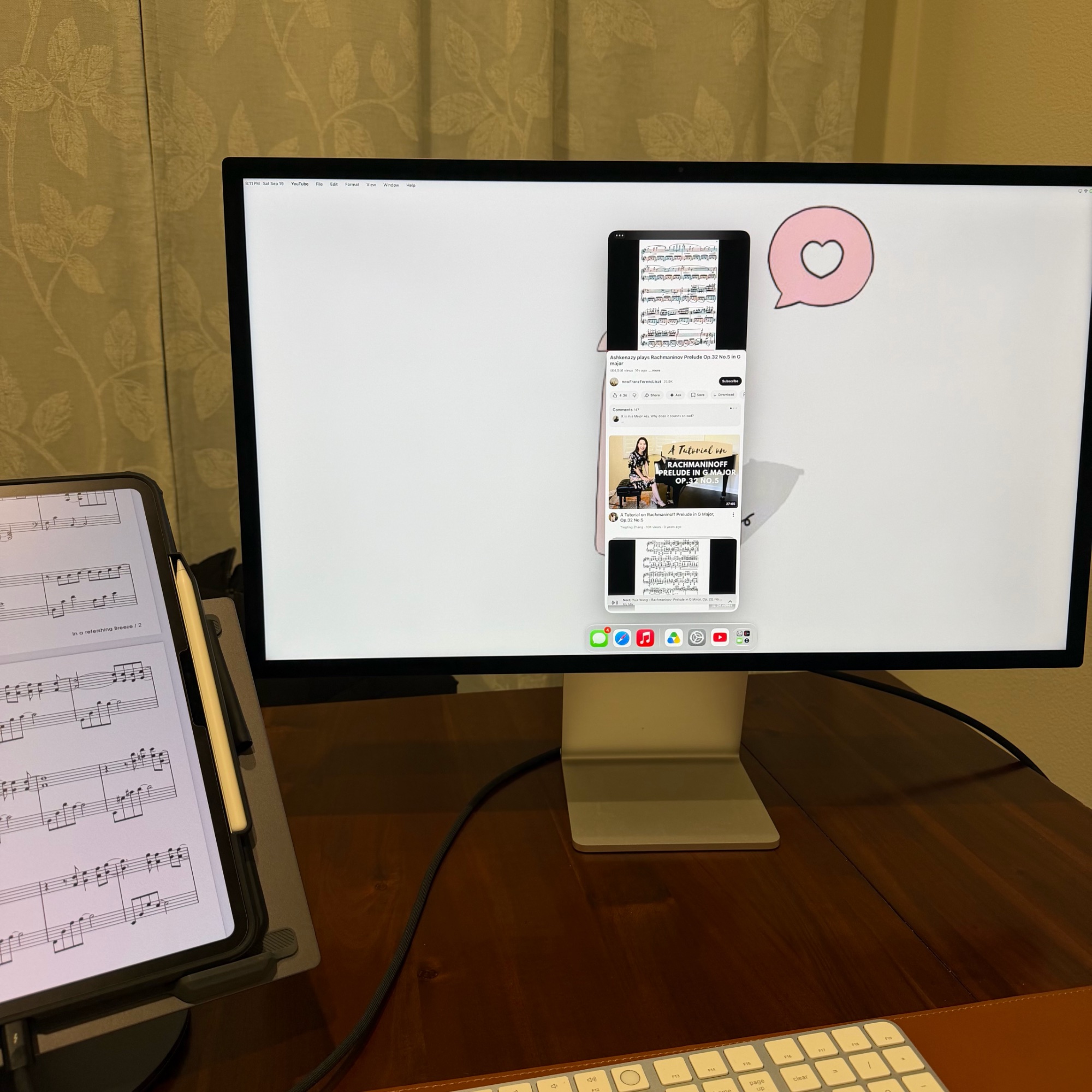
How you actually move a window
This took us longer than it should have, and we have not found it written down anywhere for this version of iPadOS.
It is not the three dots at the top of the window. Press and hold the green full-screen button in the corner of an app’s title bar, and a menu appears with window sizes and an option to send the window to the other display. That is the control.
Once you know it exists, arranging two screens is straightforward. Until you do, the display sits there looking like it cannot be used for anything.
The part that decides whether you buy this
A Studio Display has no touchscreen. Your iPad does. Every habit you have for operating an iPad stops at the edge of the small screen.
You can still drive the second screen — the green-button menu will send a window across, and keyboard shortcuts move you around. But resizing a window, dragging it, closing it, or clicking anything on it means reaching for a pointer. Without one, the larger and more expensive of your two screens is somewhere you can put things and not somewhere you can work.
So the display is not the whole purchase. If you are buying one to use with an iPad rather than a Mac, budget for a trackpad or mouse as part of it. No specification sheet mentions this, because it is not a specification — it is a consequence of putting a touch operating system on a screen that cannot be touched.
The one thing a Mac tells you that an iPad does not
On a Mac, the display settings show you the resolution as a number. On the iPad there is no number anywhere — not in Settings, not in About. What you get instead is Display Zoom with three choices: Larger Text, Default, and More Space. Ours was on More Space.
That is the only capability we found on the Mac side and not on the iPad side. It changes nothing about how the display performs; it means you cannot confirm what the iPad is actually driving.
Charging, briefly
The iPad went from 68% to 80% over the session, on the display’s cable alone with no other charger attached. We did not set up a controlled run for this, because the answer was never in doubt: the same display supplies 94W and keeps a 16-inch MacBook Pro charging at full load, and an iPad draws a fraction of that.
Where our numbers are weak
- One iPad, one display. A 13-inch M4 iPad Pro and an original Studio Display — the one whose Thunderbolt link negotiates at 40Gb/s, not the newer revision. We cannot tell you the newer display or a smaller iPad behaves identically.
- We did not test the display’s USB ports with the iPad. If you are planning to hang storage off the back of the display, that is the check we owe you and have not done.
- “Works” means it worked for us, once. We confirmed each item by using it, not by running it repeatedly. This is a compatibility check, not a reliability test.
- We did not measure image quality. Colour, brightness uniformity and refresh behaviour are not things we can assess without equipment we do not have.
If you are about to try this
Connect the cable, then go to Settings → Display & Brightness and switch the connected display from mirroring to extending. That removes the black bars and gives you a real second screen.
Then press and hold the green button on any window to move it across. And have a trackpad within reach before you start, because the moment the window lands on the other screen you will want to touch it, and you will not be able to.
Checked 19 September 2026. iPad Pro 13-inch (M4) on iPadOS 27.0, connected by Thunderbolt to a Studio Display and to nothing else, battery at 68% at the start. Each item confirmed by using it. The display’s USB-C ports were not tested.